How to post a game
On CraftNova, you can post a game an AI made for you and let people around the world play it. You don't need to know how to code.
This page walks through every step using real screens from posting a game called "Neon Pinball". You can post from a phone or a PC.
What you need
- A CraftNova account (free)
You need to log in to post. If you don't have an account yet, create one from Log in / Sign up. - An AI chat service
ChatGPT, Claude, Gemini, and others all work. Free plans are enough to make a game.
The screens look a little different, but the steps are the same on phone and PC.
Open the posting page
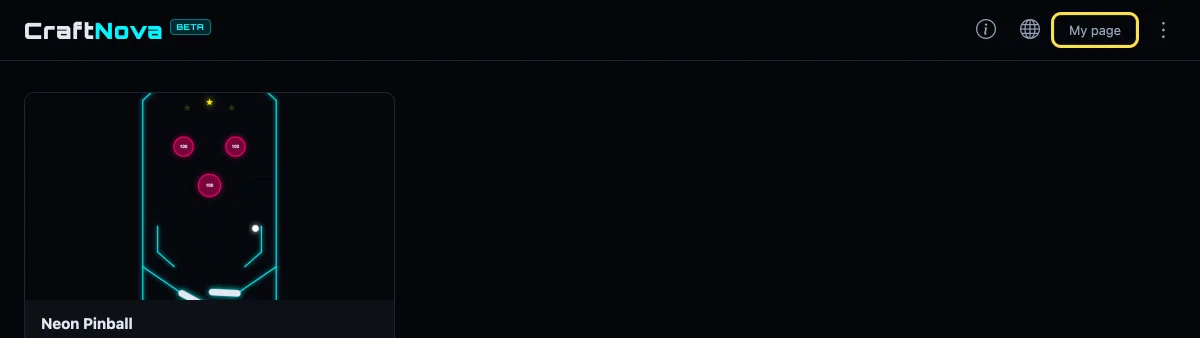
First, log in to CraftNova and open the page for posting a game.
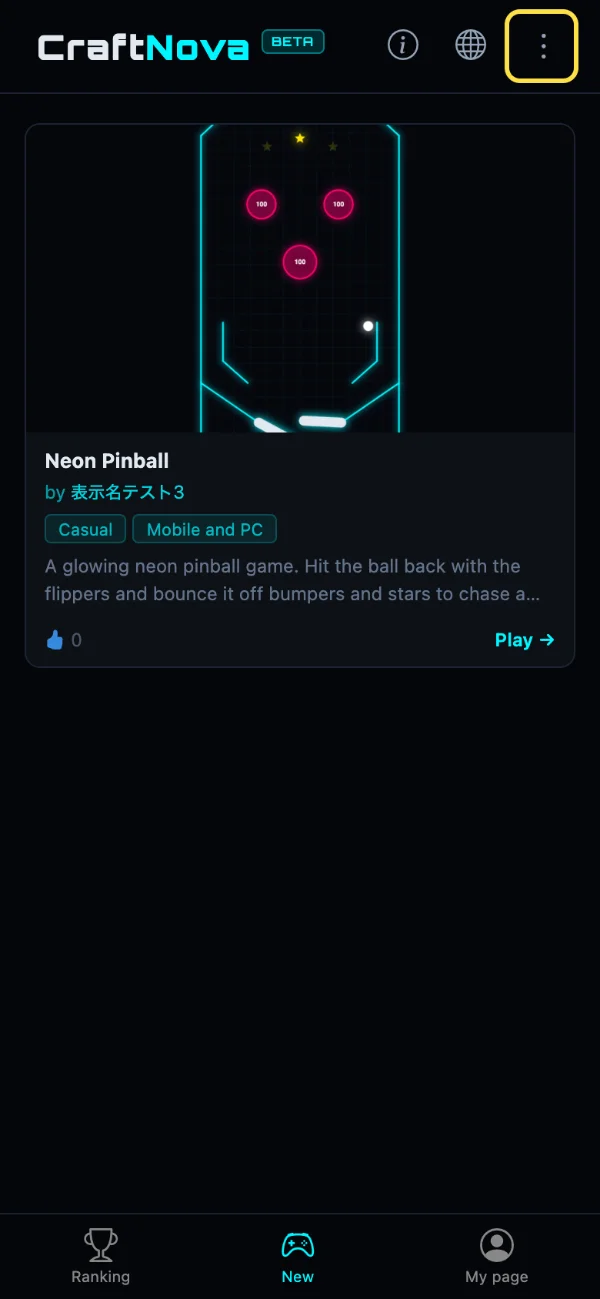
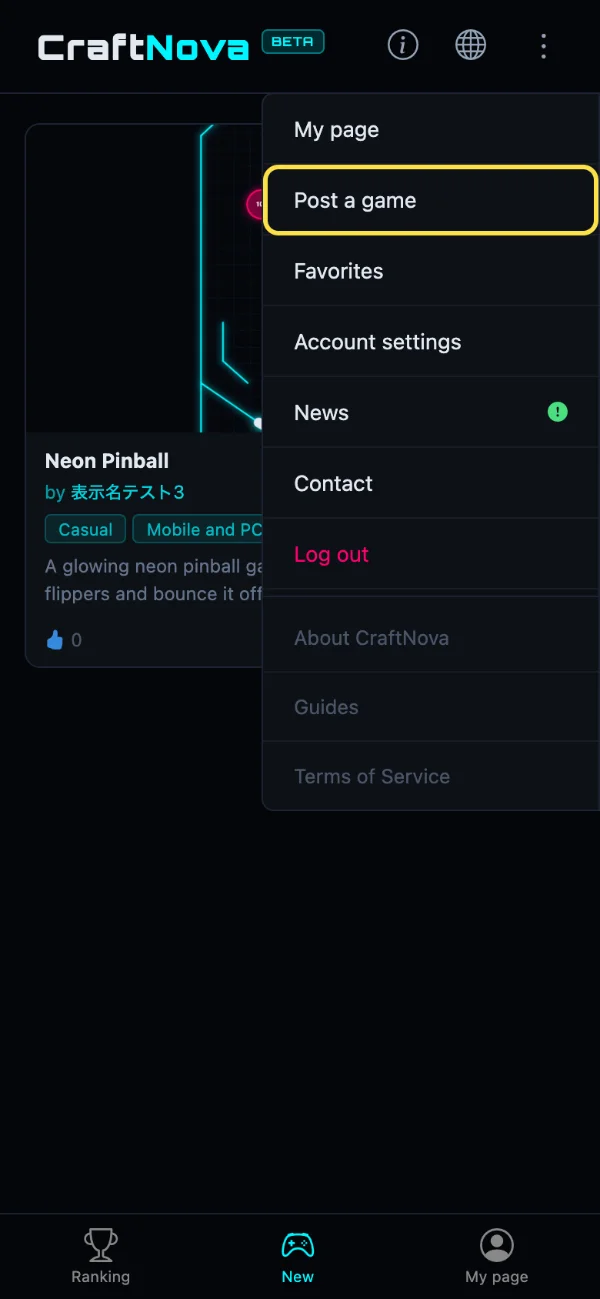
Tap the "⋮" button in the top-right corner to open the menu, then choose "Post a game".
Copy the guidelines
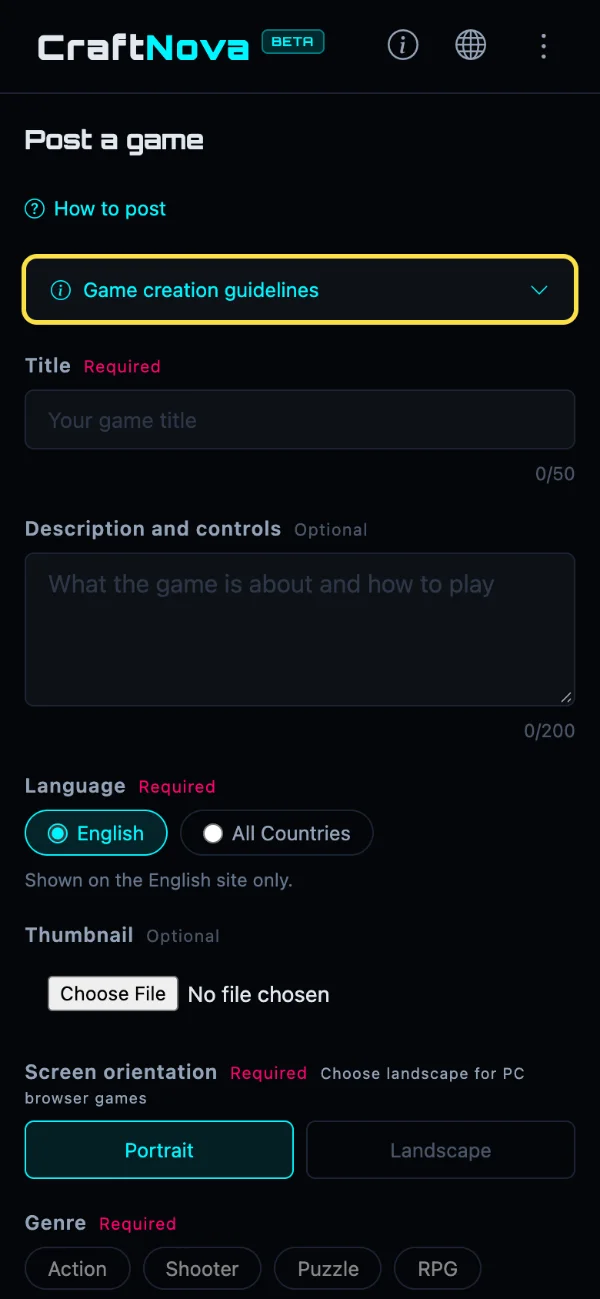
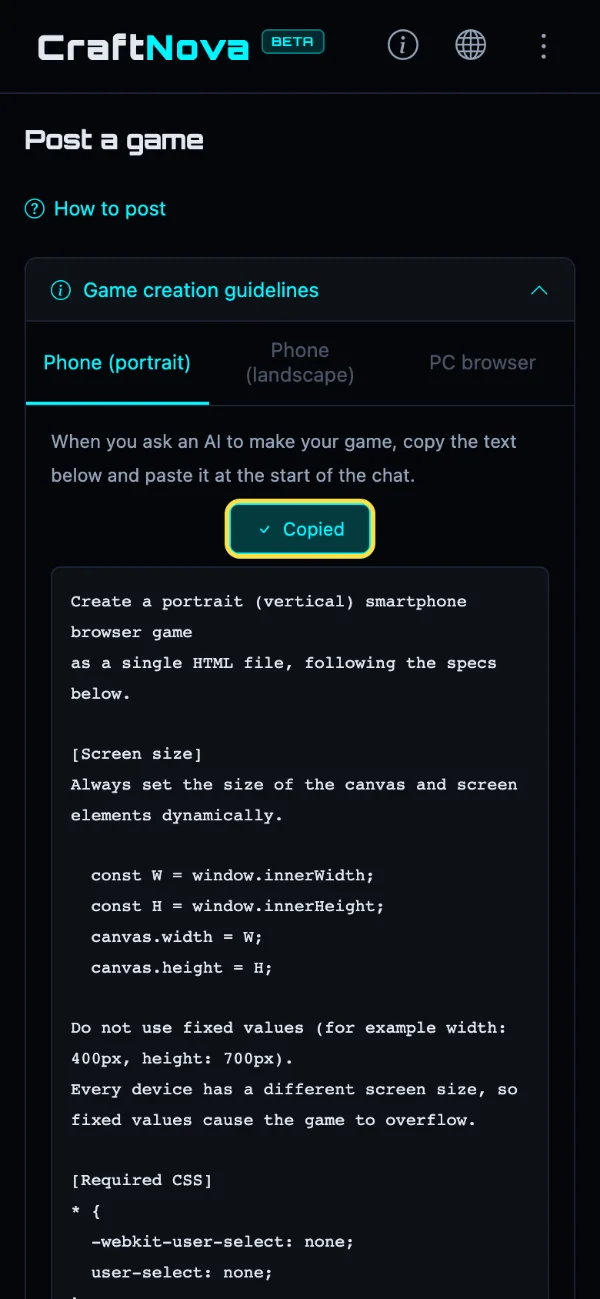
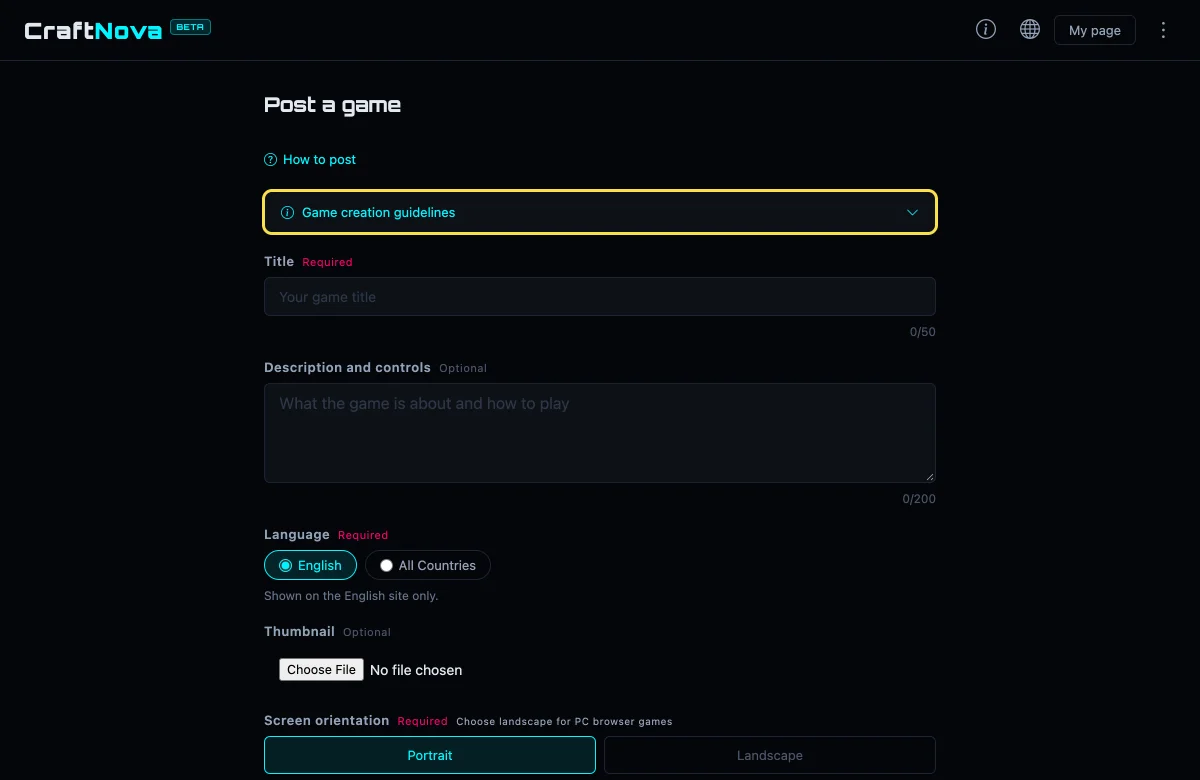
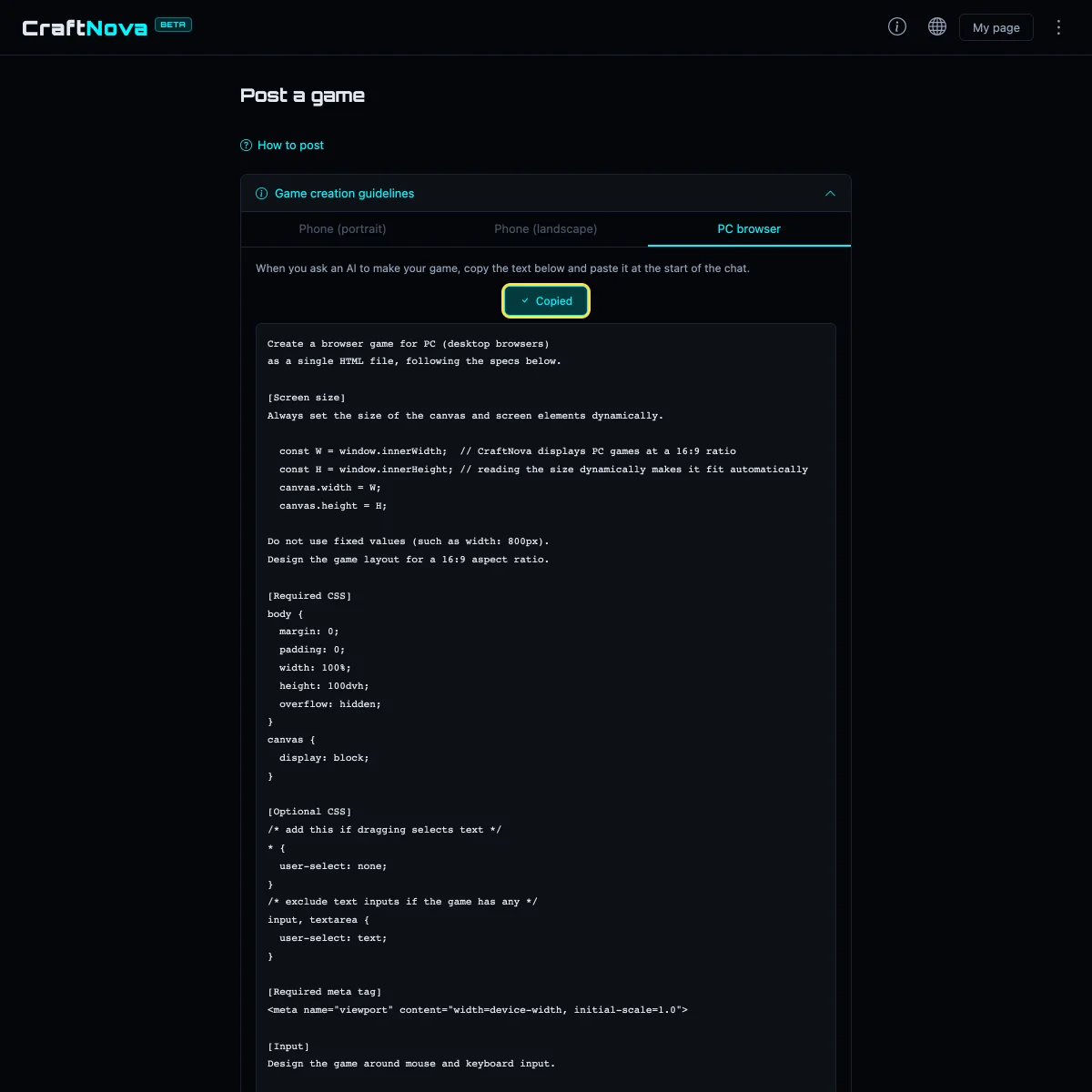
Open "Game creation guidelines" at the top of the posting page. The guidelines are a set of instructions for the AI that make sure your game actually works on CraftNova. Giving them to the AI first prevents the most common problems, like games that overflow the screen or can't be controlled on a phone.
Choose "Phone (portrait)", "Phone (landscape)", or "PC browser" to match how the game will be played, then press the copy button. When it says "Copied", you're set.
This time we wanted a game you play holding your phone upright, so we chose "Phone (portrait)".
Ask an AI to make your game
Open an AI chat (ChatGPT, Claude, Gemini, or any other) and paste the guidelines you copied. Below them, describe the game you want, then send the message.
The long block of text the AI sends back, from "<!DOCTYPE html>" to "</html>", is your game (the HTML code). Use the copy button in the AI's reply to copy all of it.
Example: what we sent to the AI (added below the guidelines)
Make a neon pinball game. Use left and right flippers to hit the ball, and give points when the ball hits bumpers or stars. The player has 3 balls, and the game is over when all of them are lost. On phones, touching the left or right half of the screen moves the flippers. On PC, use the left and right arrow keys.
Describe what kind of game it is, how to control it, and how it ends. The more specific you are, the closer the result will be to what you imagined.
If the reply stops partway through, ask "Please continue" or "Put everything in one HTML file and send the whole thing from the start."
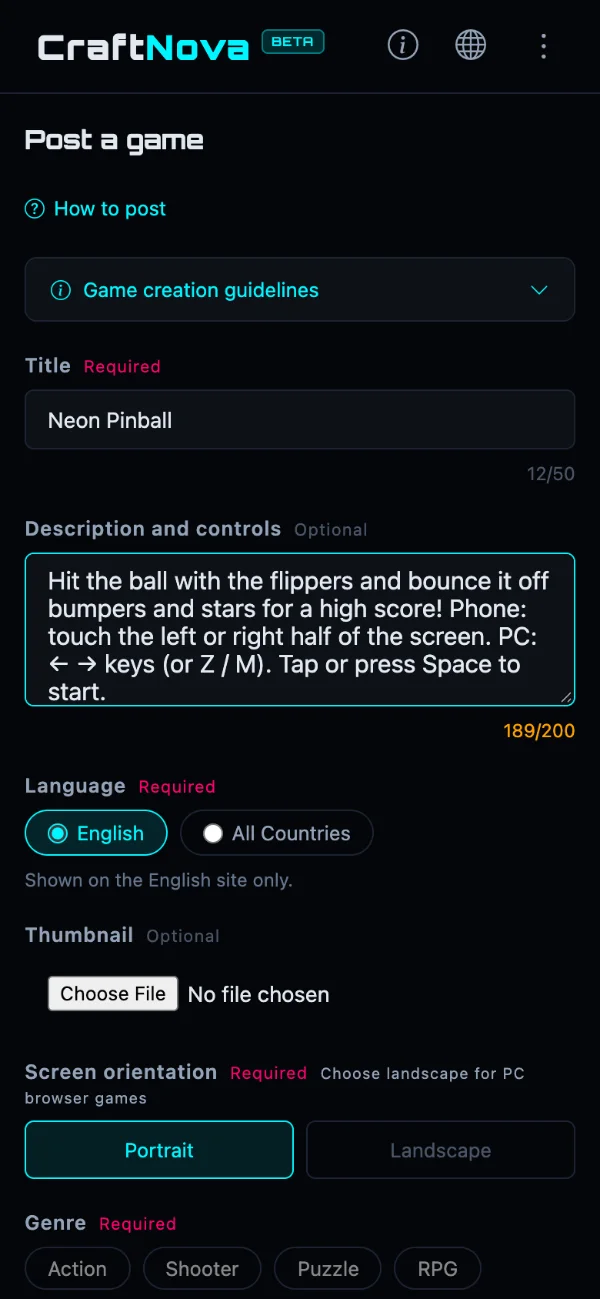
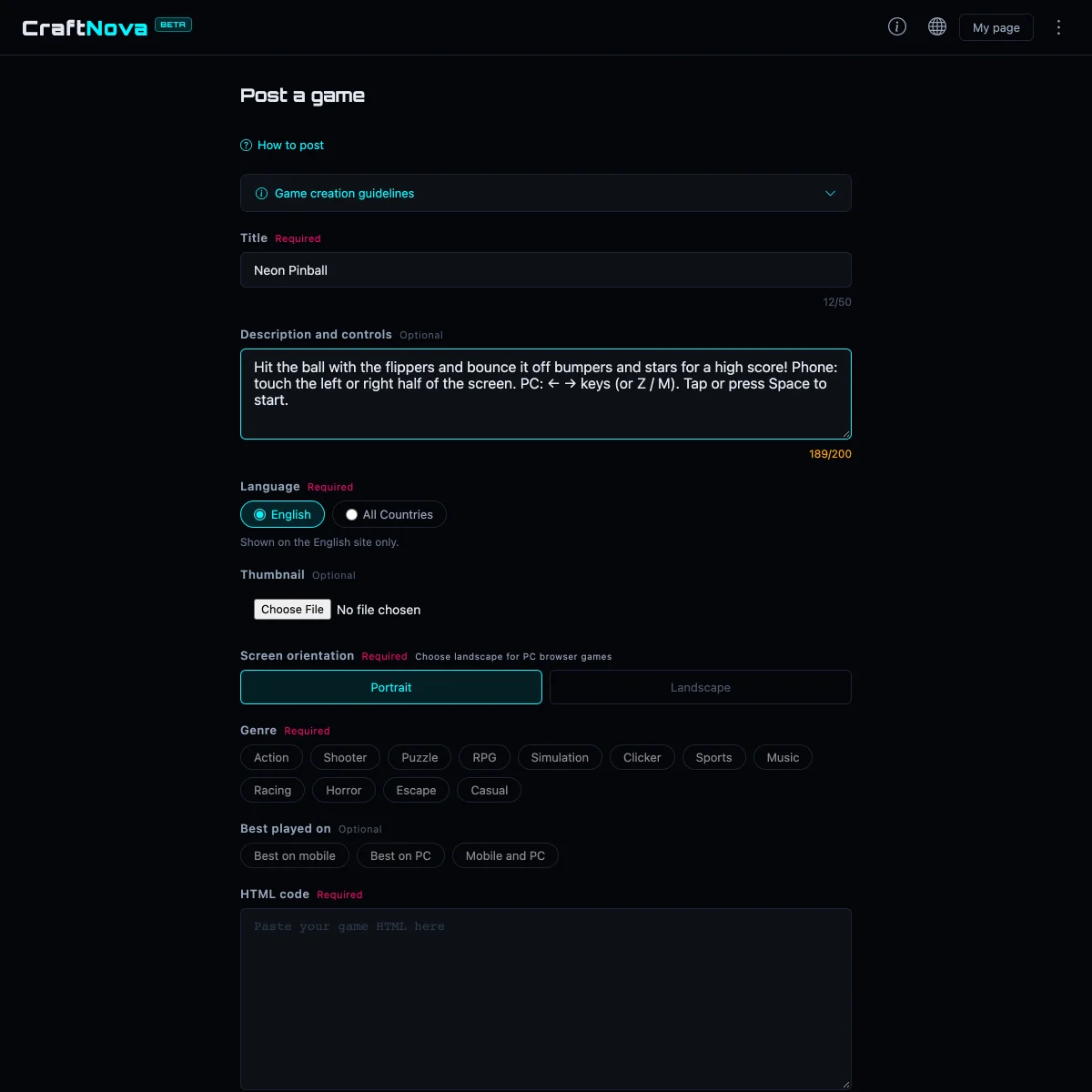
Enter a title, description, and language
Enter a "Title" (required, up to 50 characters) and a "Description and controls" (optional, up to 200 characters).
Players can read the description from the book icon on the game screen. Explaining how to play makes your game friendlier to first-time players.
Under "Language", choose where your game appears. "English" shows it on the English site only. "All Countries" shows it on both the English and Japanese sites, and your title and description are translated into Japanese by AI for the Japanese site.
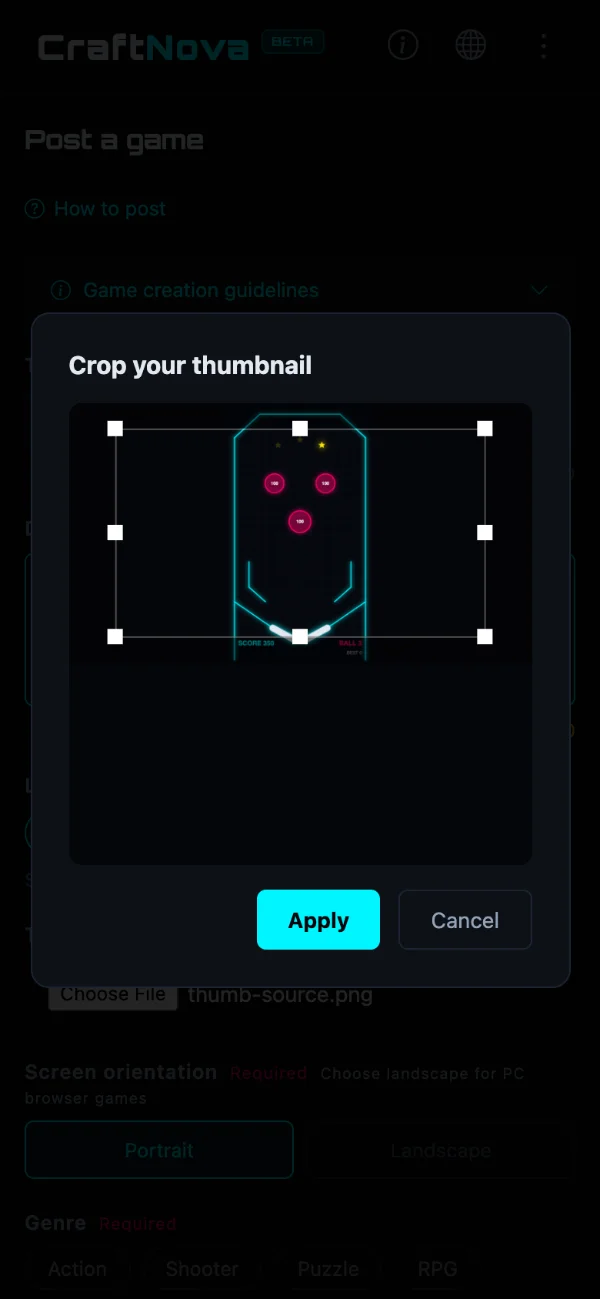
Choose a thumbnail (optional)
The thumbnail is the image shown in the game list. When you choose an image, such as a screenshot of your game, a cropping screen appears. Move the frame and press "Apply" (thumbnails are shown at a wide 16:9 ratio).
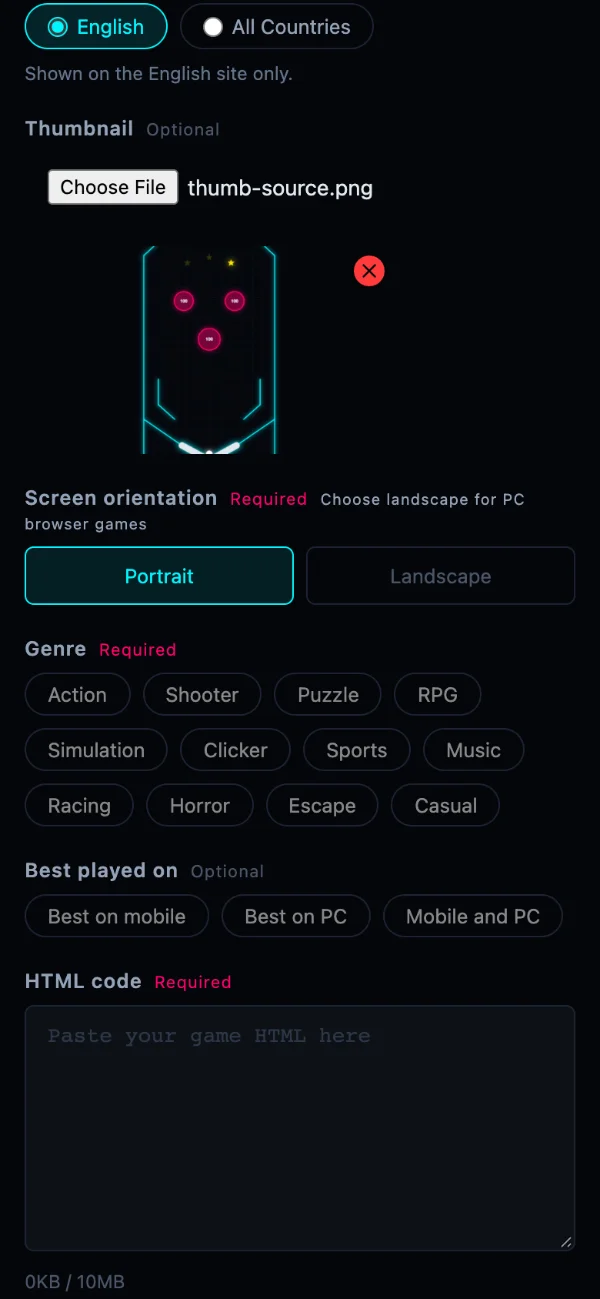
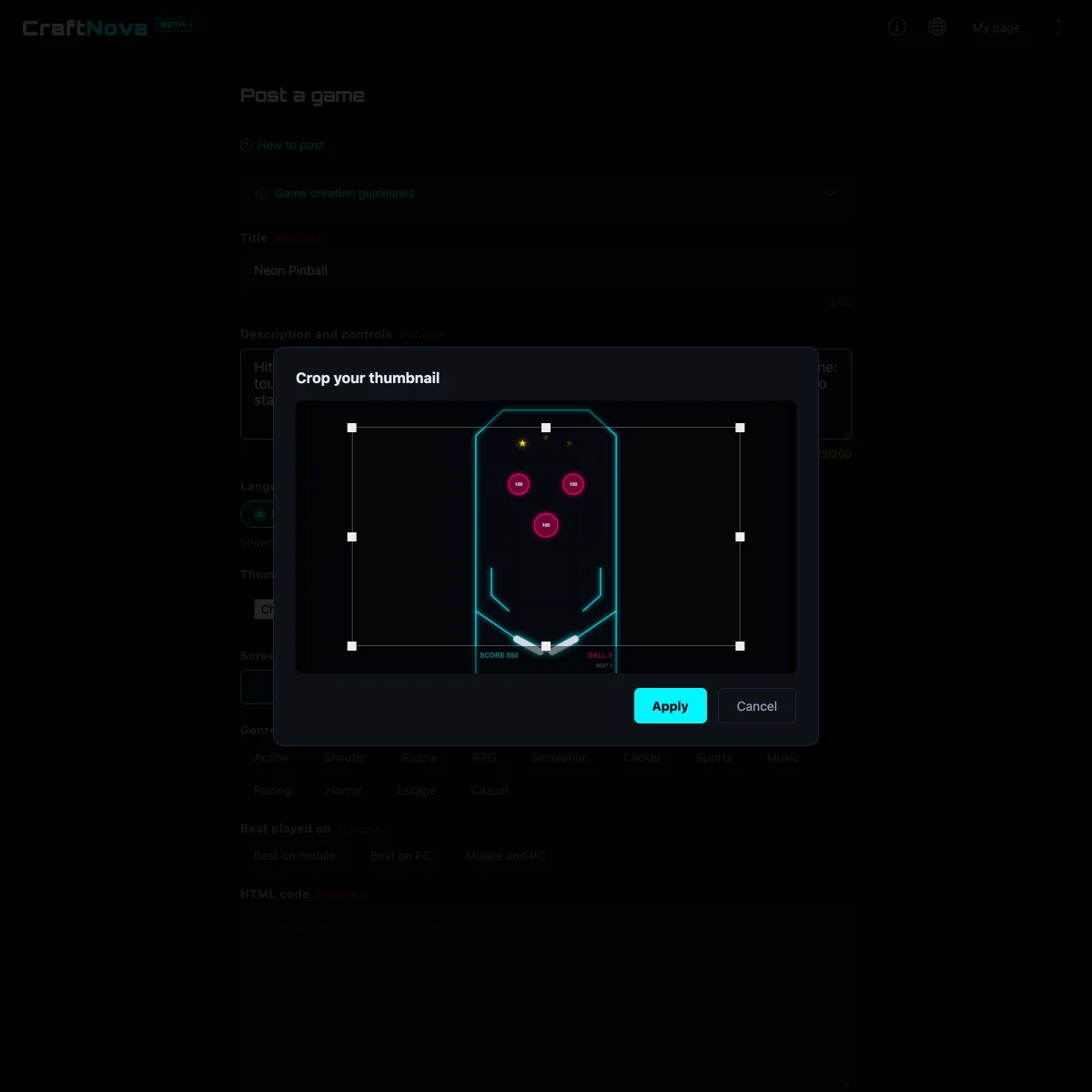
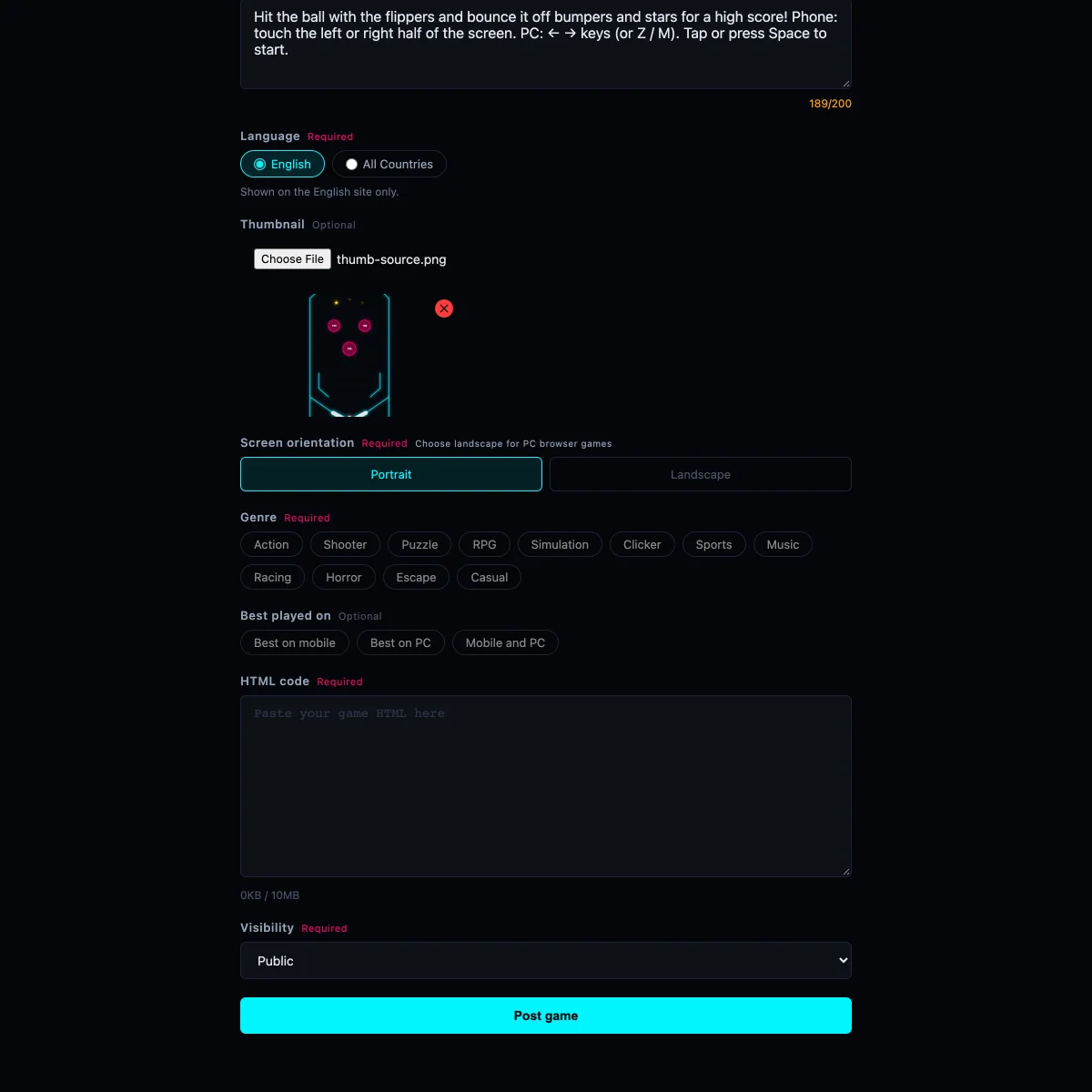
Games with a thumbnail stand out in the list. If you don't have a screenshot yet, post the game as "Private" first, play it and take a screenshot, then add it later with "Edit" on My page.
Choose orientation, genre, and device
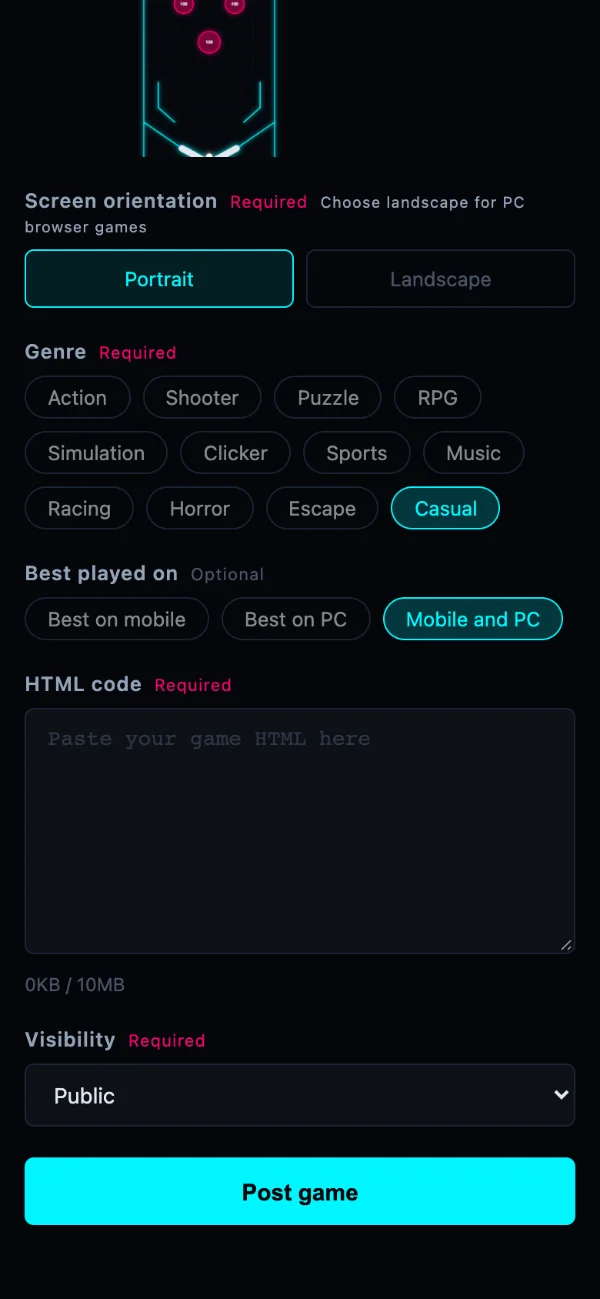
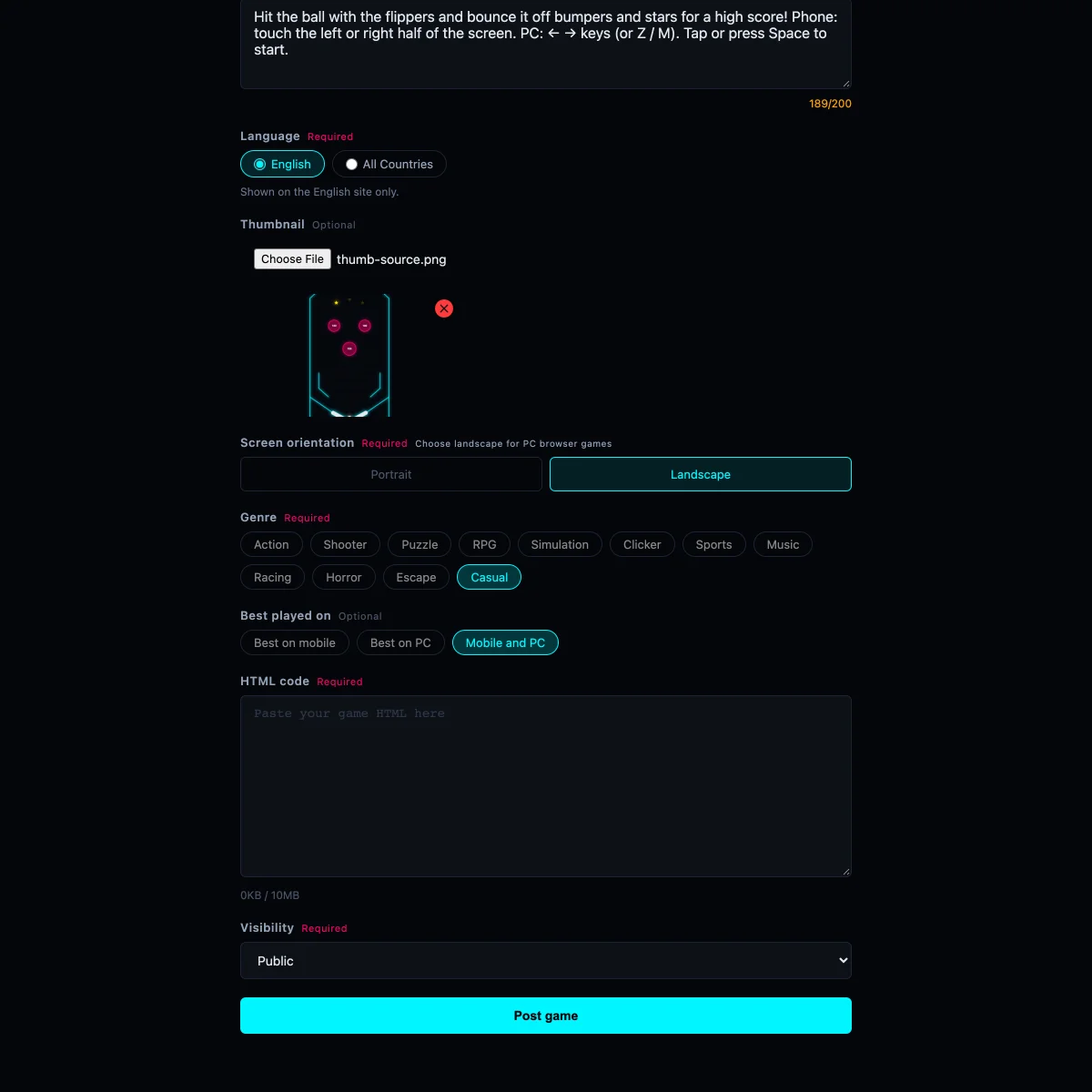
For "Screen orientation" (required), choose "Portrait" for games played with the phone upright, or "Landscape" for games played sideways or on PC.
"Genre" and "Best played on" are optional, but picking something close helps players find your game. This time we chose "Casual" for the genre and "Mobile and PC" for the device.
This game is played holding the phone upright, so we chose "Portrait".
Paste the HTML code
Paste the HTML code you copied in step 3 into the "HTML code" box. The number below the box shows the size of your code. You can post up to 10 MB.
Long-press the box and choose "Paste".
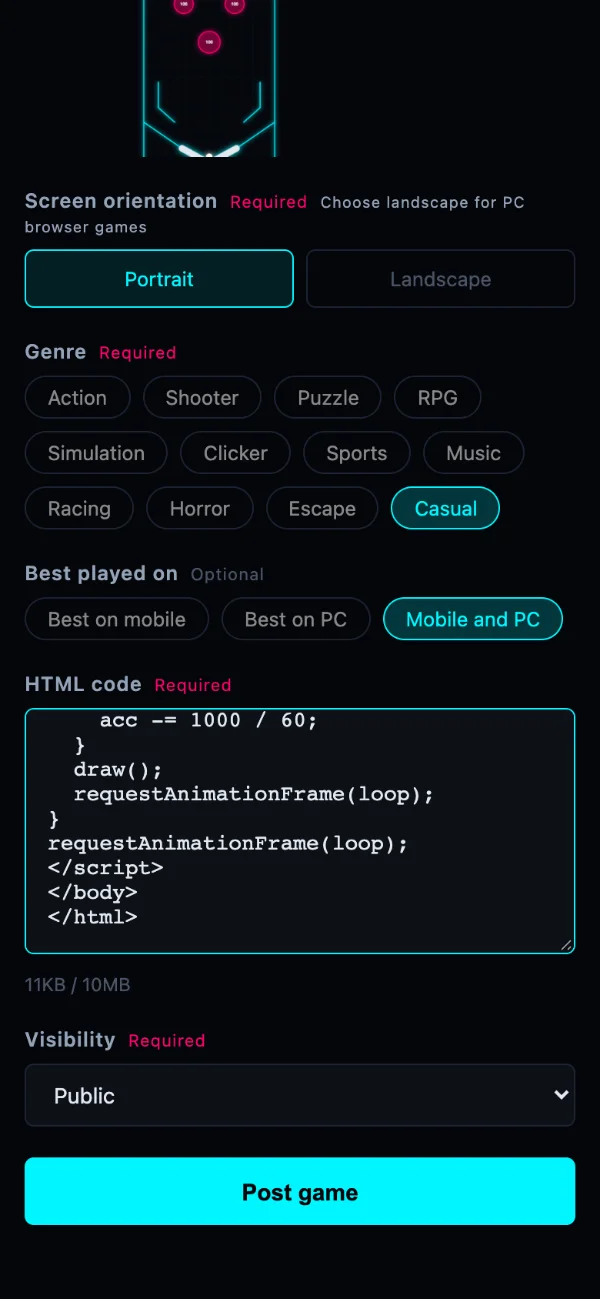
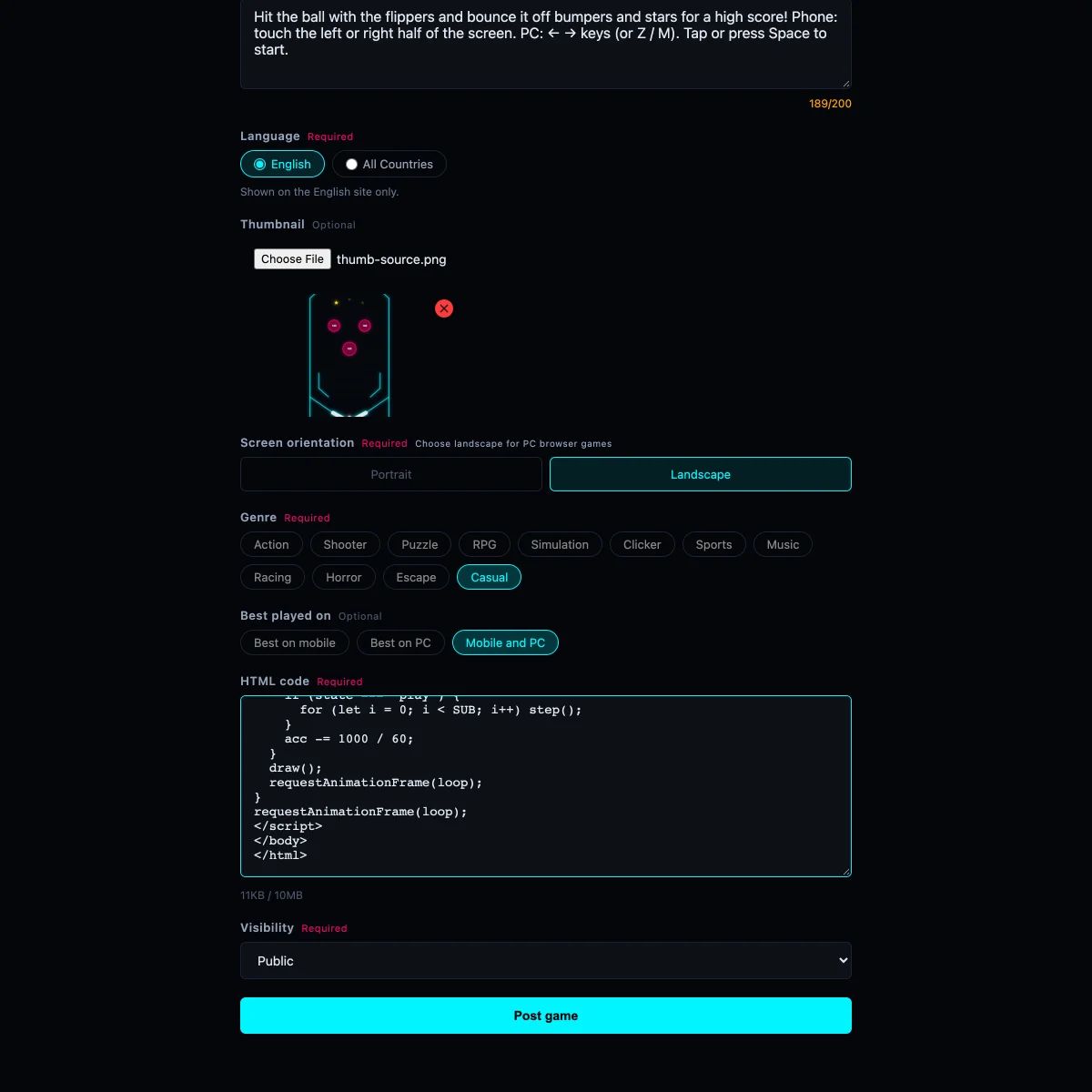
Check that everything from the first "<!DOCTYPE html>" to the last "</html>" is there. If part of it is missing, the game will show a blank screen.
Choose visibility and post
"Visibility" controls who can play your game.
- Public: anyone can play it, and it appears in the game list.
- Unlisted: only people with the link can play it. Handy for sharing with friends.
- Private: only you can see it.
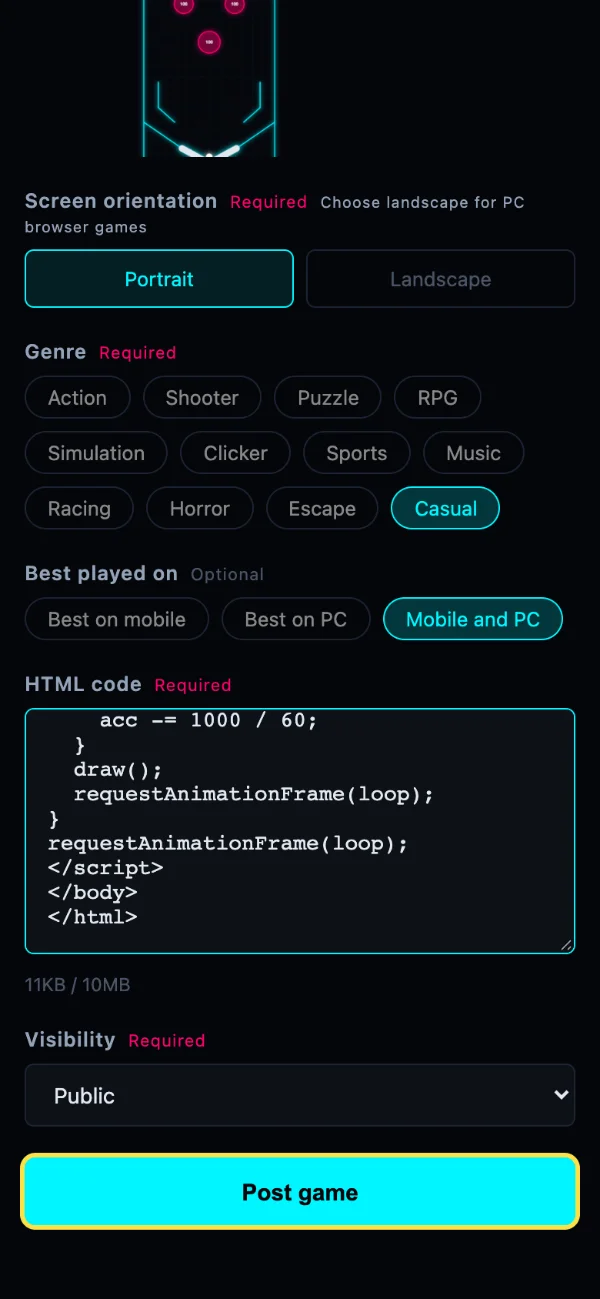
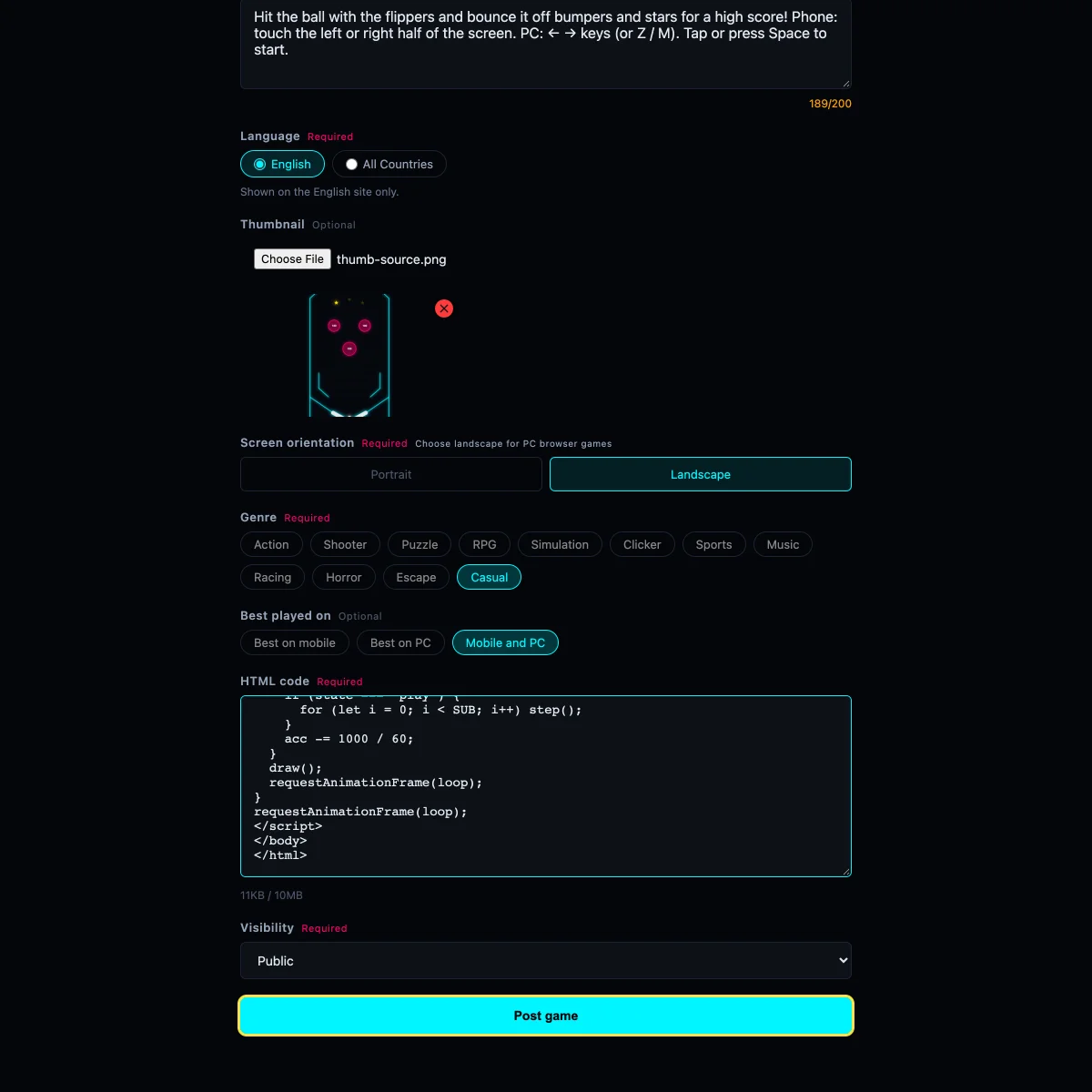
Then press the "Post game" button.
Check it on My page and play
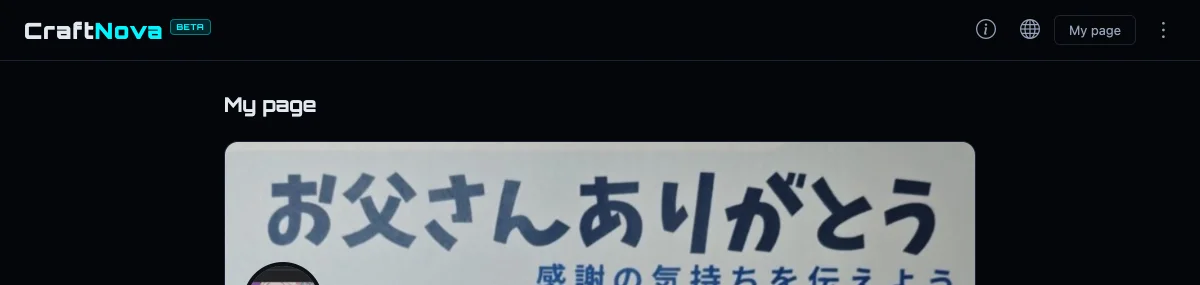
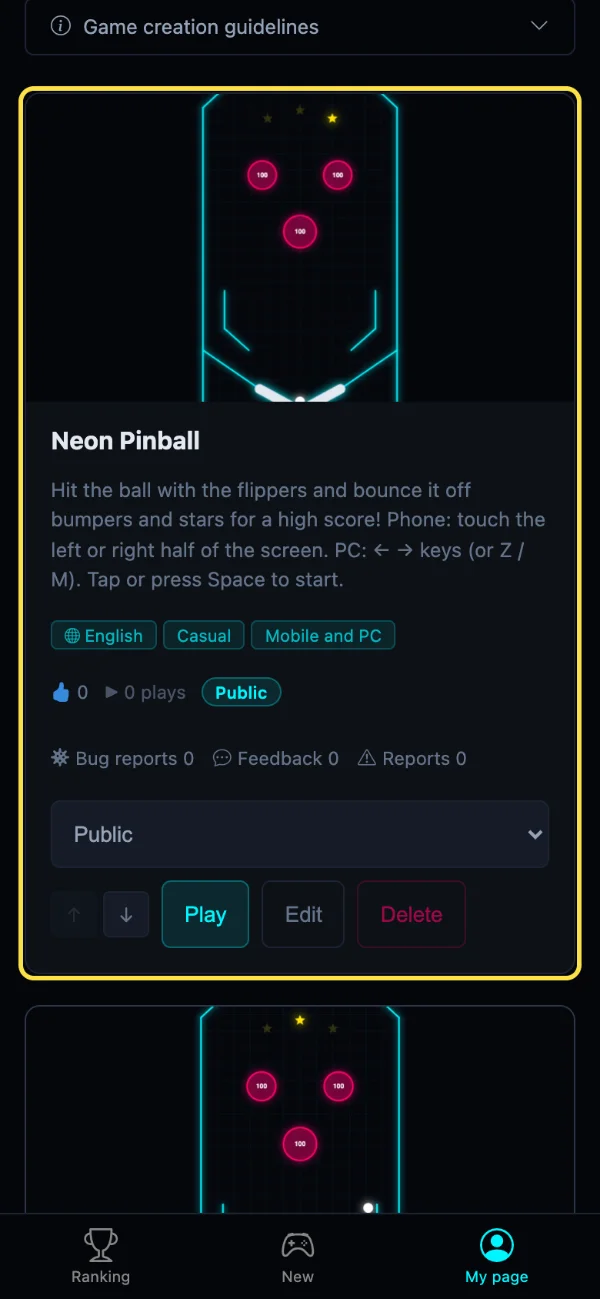
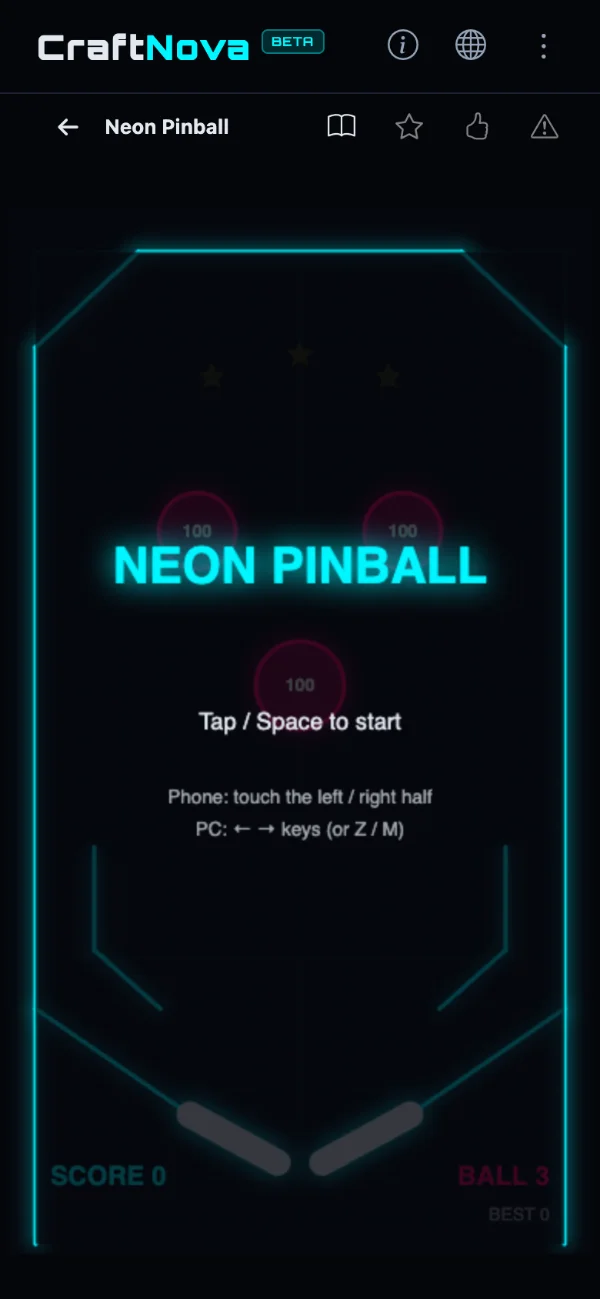
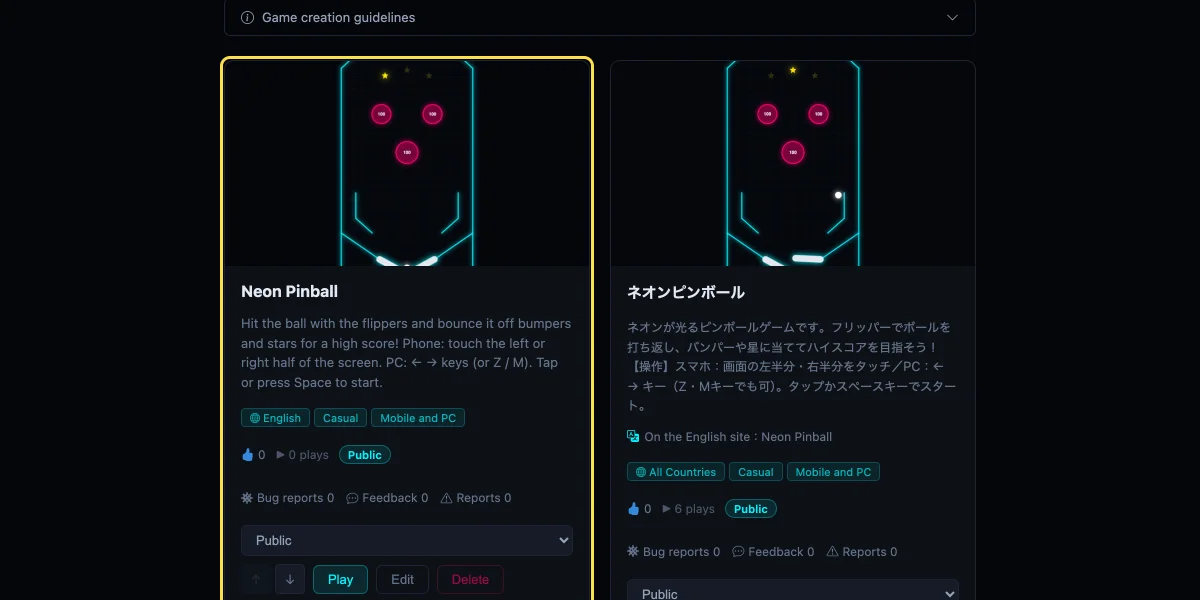
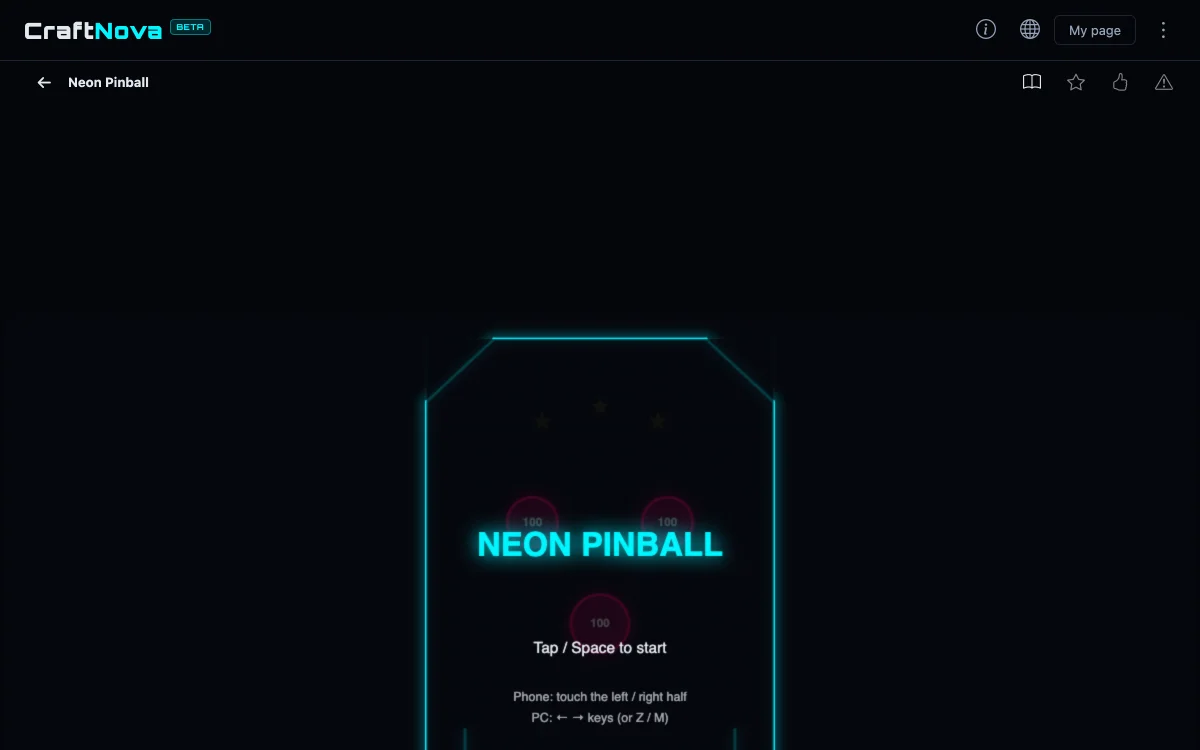
After posting, you'll land on My page with your new game added. Press "Play" to try it right away.
If something doesn't work, use "Edit" to replace the HTML code. Tell the AI what to fix and paste in the new code it gives you.
Troubleshooting
- The game doesn't work the way I wanted
- AI makes mistakes too. Tell it exactly what's wrong, like "the ball goes through the wall" or "nothing happens when I press Start", and ask it to fix the game. You can replace the HTML code with the fixed version from "Edit" on My page.
- The game overflows the screen or is too small
- The game was probably made without the guidelines. Start over with the guidelines pasted first, or ask the AI to "fix the screen size as described in the [Screen size] section of the guidelines."
- The screen is blank
- The code may be cut off, or you may have pasted the AI's explanation along with it. Paste only the part from "<!DOCTYPE html>" to "</html>".
- I can't control the game on my phone
- For phone games, use the "Phone (portrait)" or "Phone (landscape)" guidelines. Games made with the PC browser guidelines may not support touch controls.
- Images or sound files don't load
- Games on CraftNova must run from a single HTML file. They can't load other files or images and sounds from the internet. Ask the AI to "create all images and sounds inside the HTML without using any files."
Still stuck? Reach out through the contact form or send a DM to @craftnovagame on X.